Software for lighting installers

Turn a house photo into a lighting quote.

Permanent or holiday. Draw the lighting runs, price them with your own rates, and carry the details from quote to installation.

7 days free, no card needed. Founding prices while places last.

01 / THE LIGHTING PREVIEWPHOTO → SCOPE → QUOTE
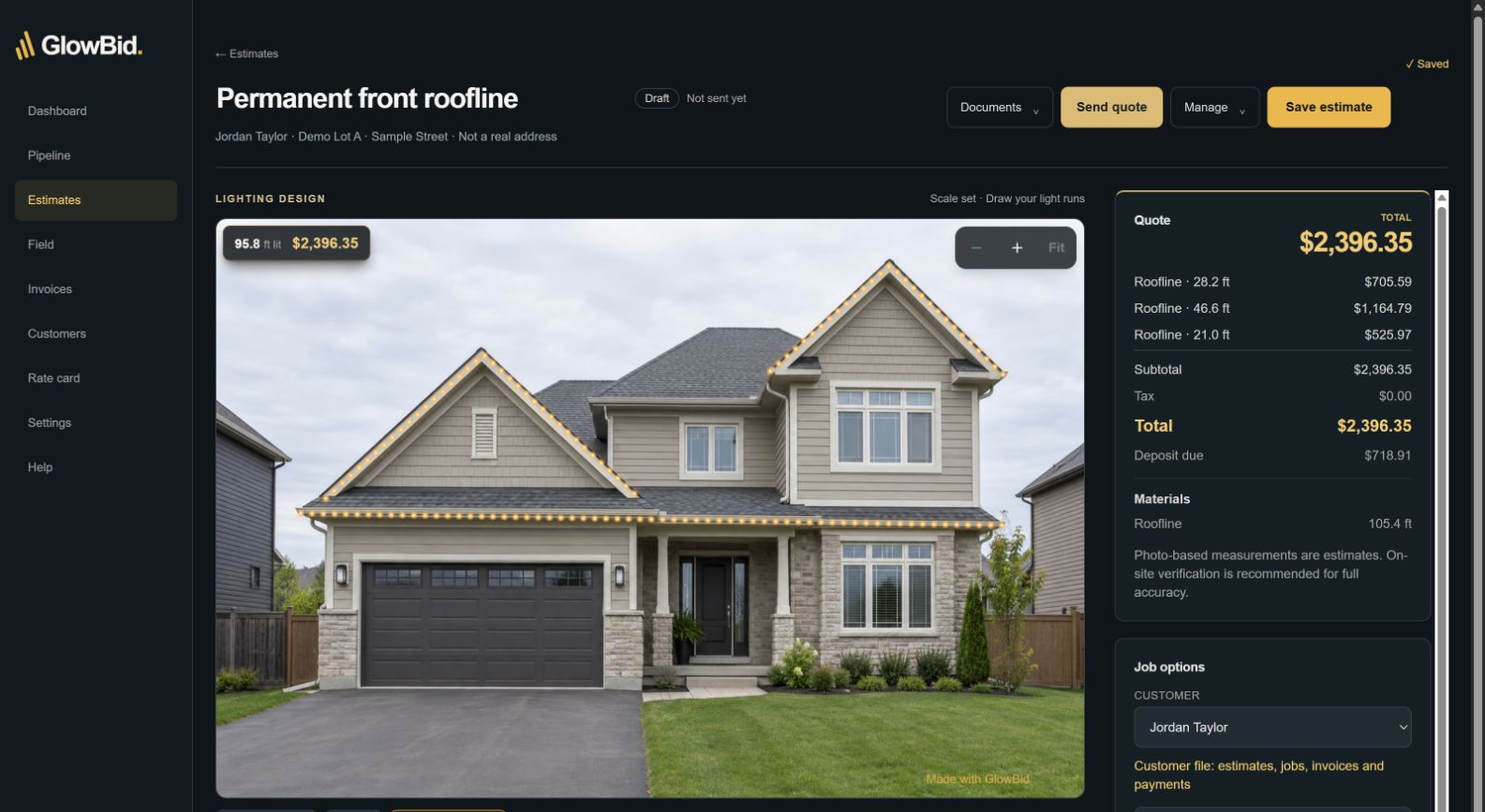
Actual GlowBid estimator with house roofline drawings and quote
Inside GlowBidThe picture becomes
the priced scope.

Your photo. Your lighting runs. Your rates.

ESTIMATINGLIGHTING VISUALIZATIONCUSTOMER MANAGEMENTJOBS & FIELD MANAGEMENT

02 / PHOTO TO PRICED SCOPE

See the quote
take shape.

Set a known dimension. Trace the lighting runs. See the estimate update from your rate card. Here’s what that looks like inside GlowBid.

INSIDE THE GLOWBID ESTIMATORDEMO PROPERTY
42-second screen demo · Actual interface · Sample data · Edited pacingEnlarge the product view
  1. 01

    Set the scale

    Start with a known reference dimension.

  2. 02

    Draw the runs

    Map the lighting onto the house photo.

  3. 03

    Review the quote

    See the scope priced with your rates.

Watch the controls, measured footage and itemized price as each roofline is added.

Photo measurements are estimates based on your reference. Verify dimensions on site before installation.

03 / KEEP THE WORK CONNECTED

From the first drawing
to the finished job.

Quote the scope. Plan the visit. Give the crew the details. Keep sign-off and payment connected to the customer.

05

Sign off. Invoice.
See what’s paid.

After the visit is finished, open the homeowner’s completion sign-off. Create the invoice from the job, give the customer a payment link, and track payments and the remaining balance in GlowBid.

COMPLETION SIGN-OFF / INVOICING / PAYMENTSExplore this workflow ↗

Completion sign-off: Ultimate. Quote e-signatures, deposits and invoicing: Core and above.

THE CLOSEOUT WORKFLOW

  1. 01
    Completion sign-off

    Homeowner confirms the finished work.

  2. 02
    Create the invoice

    Open invoicing from the finished job.

  3. 03
    Review payments

    See receipts and the remaining balance.

Workflow illustration · Not a customer payment record

THE CONNECTED WORKFLOW01 — 05
Actual GlowBid estimate editorEnlarge estimate view ↗
Build the scope · Fictional sample estimate
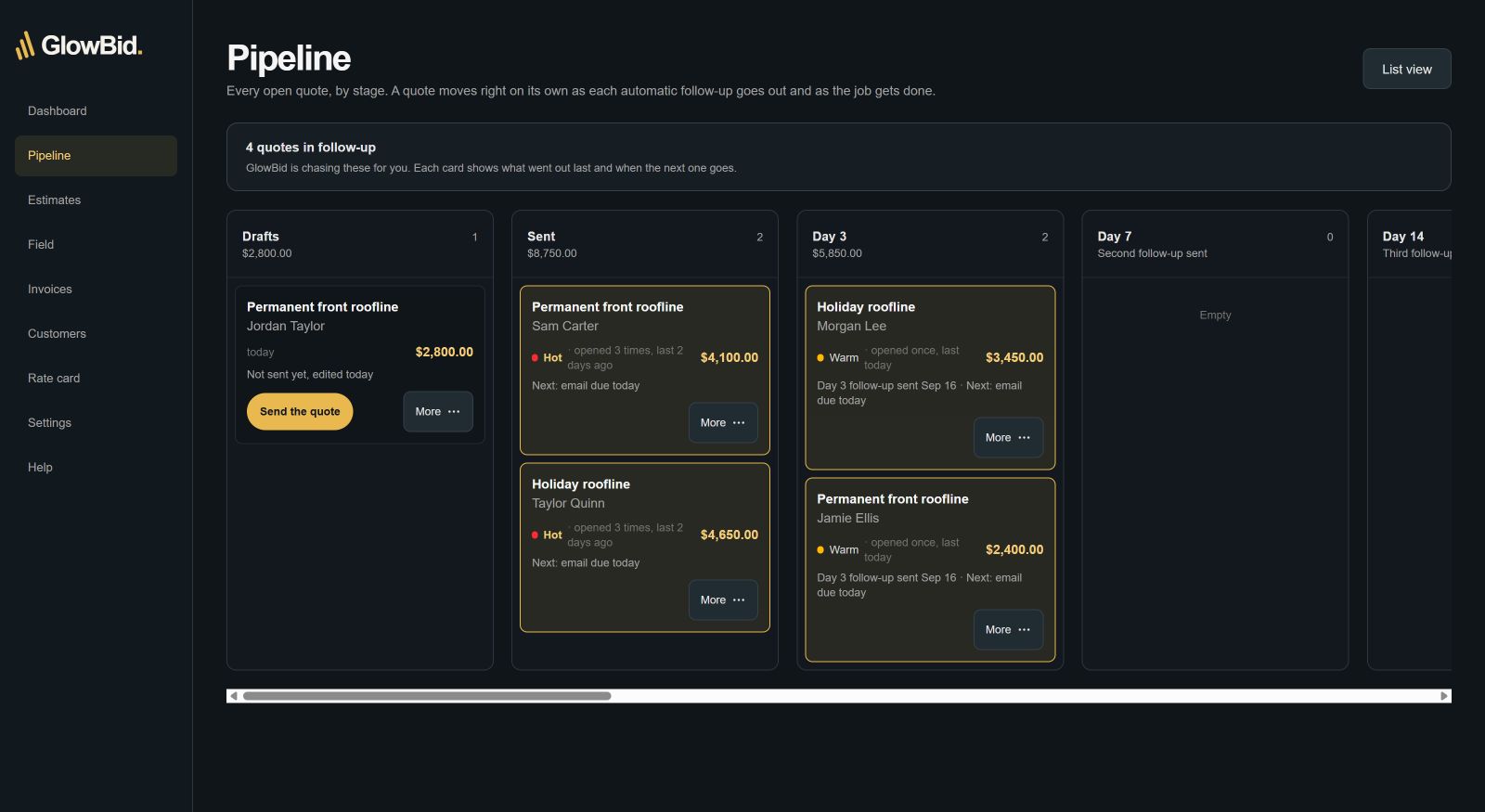
GlowBid pipeline cards with follow-up prompts, quote values and statuses; fictional sample recordsEnlarge pipeline view ↗
Full pipeline cards · App components with fictional sample records

App components with fictional sample records.

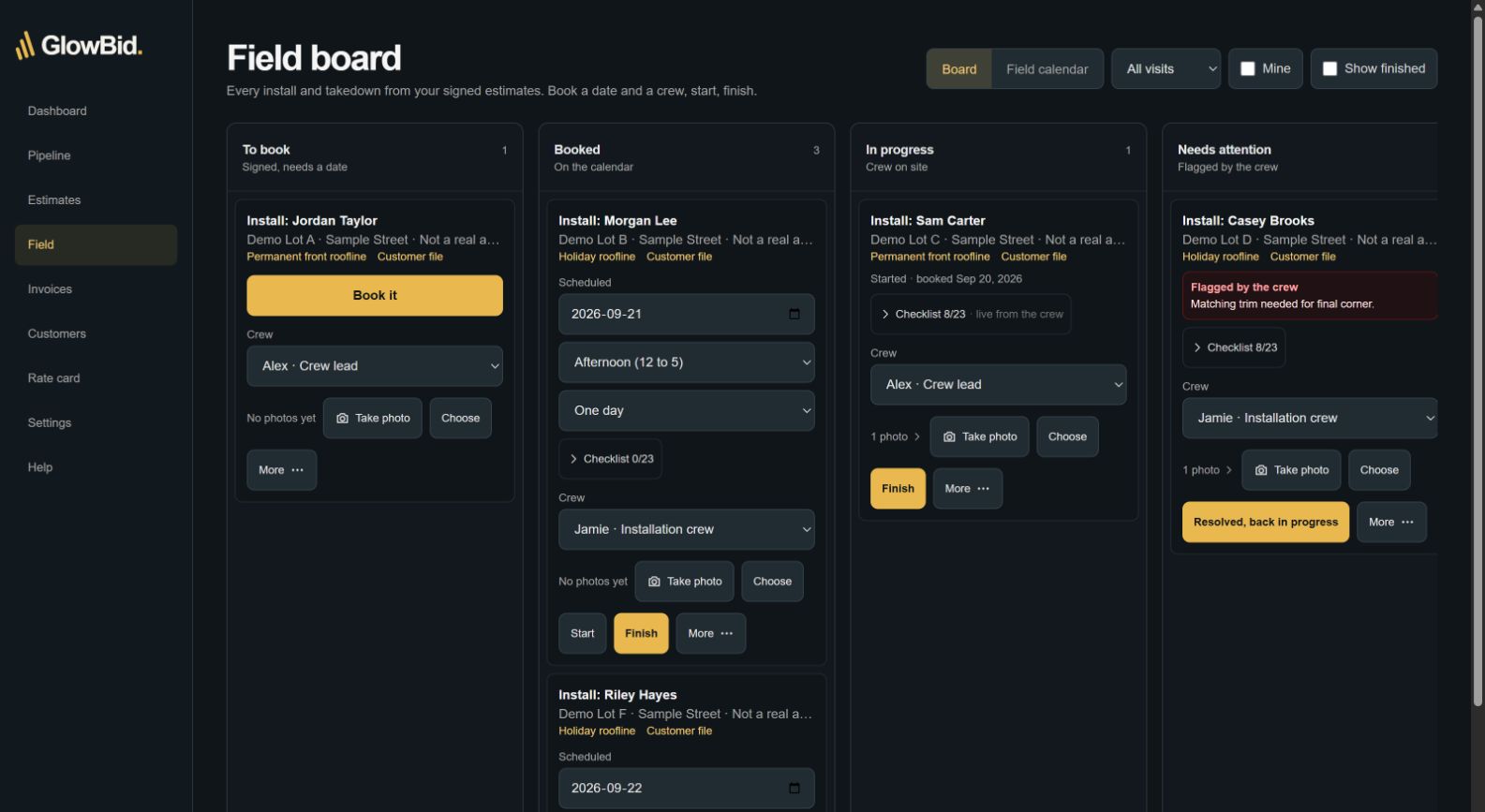
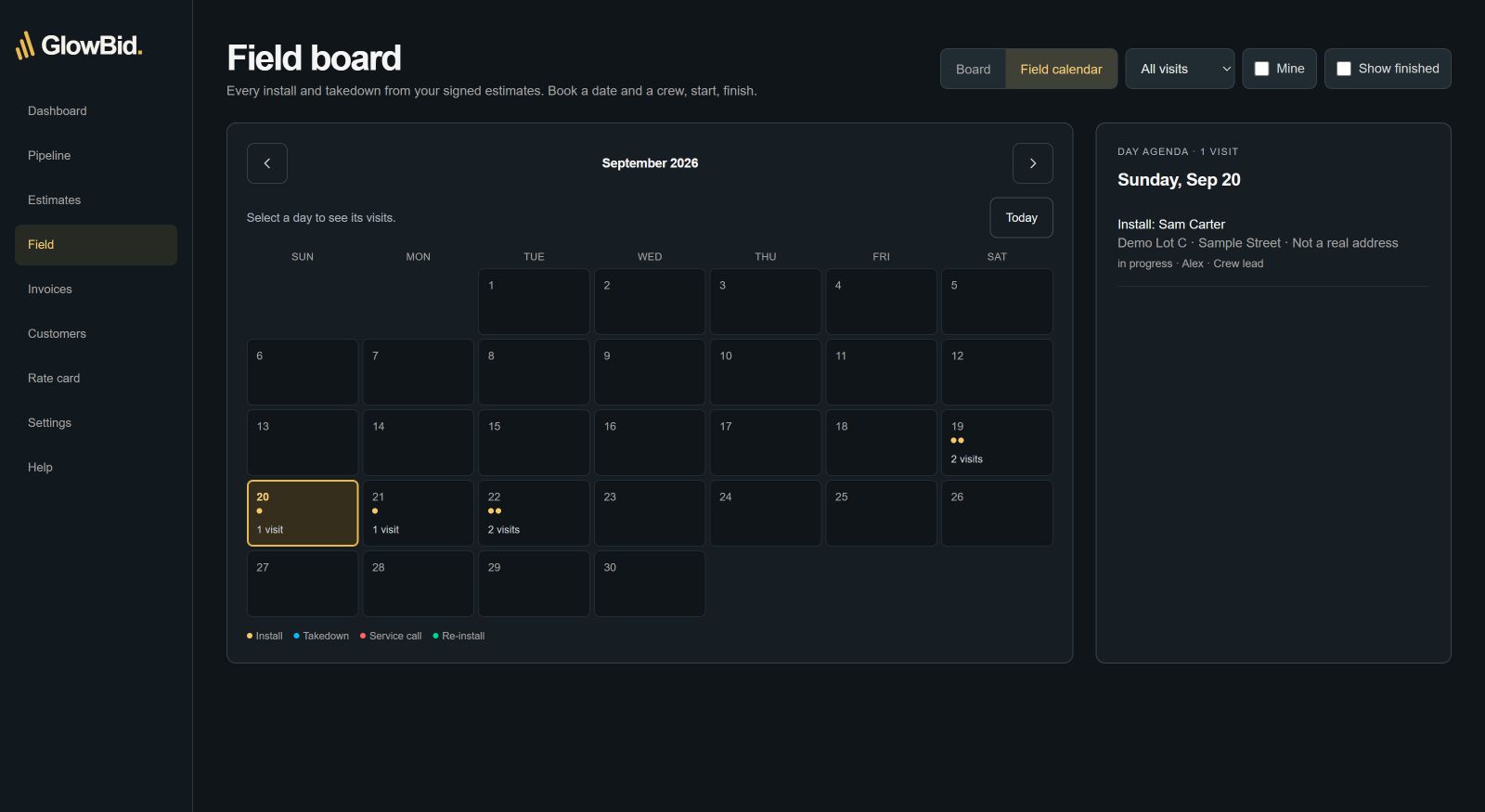
Track the job on the board. Plan the visit on the calendar.
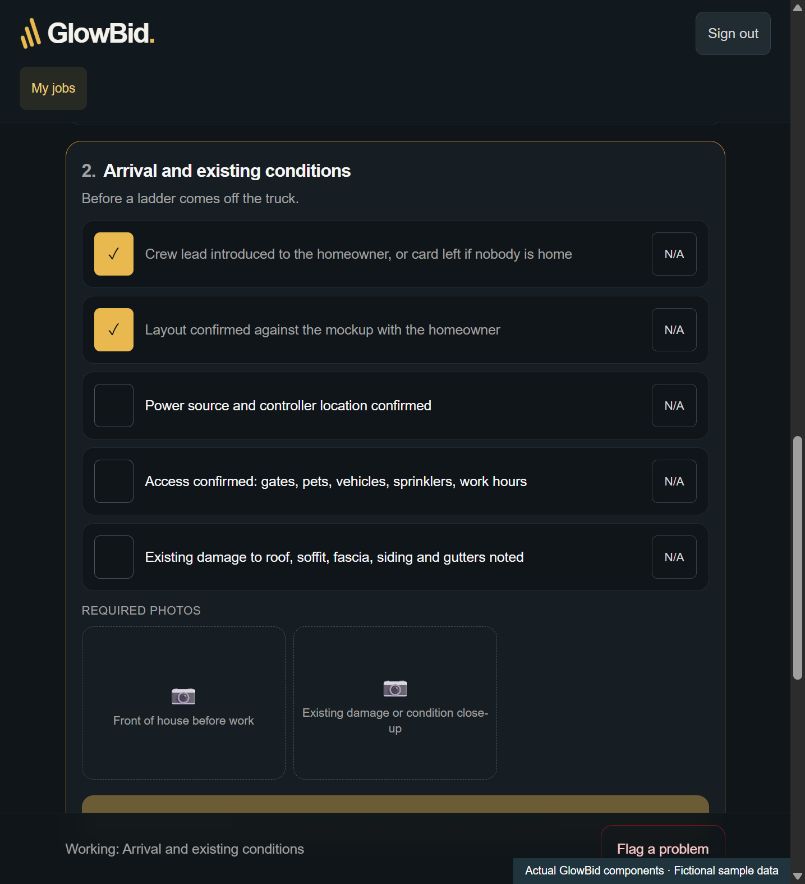
GlowBid installer checklist and required job photos, rendered from actual app components with sample dataView installer checklist · Sample data ↗
Installer checklist & photos · Source-rendered preview with sample data

THE CLOSEOUT WORKFLOW

  1. 01
    Completion sign-off

    Homeowner confirms the finished work.

  2. 02
    Create the invoice

    Open invoicing from the finished job.

  3. 03
    Review payments

    See receipts and the remaining balance.

Workflow illustration · Not a customer payment record

Completion sign-off is distinct from quote acceptance.

THE DETAILS THAT MAKE A WORKDAY EASIER

There’s more behind
every next step.

Explore the tools for the person selling the job, the office planning it and the crew on site. Open a chapter for the details.

01Every planShow the idea. Put a price on it.

Keep the homeowner’s house, your lighting design and your pricing together while you build the estimate.

Measure from a known reference

Set a dimension you know on the house photo, then trace the runs. Measurement source and confidence help you review the scope before committing.

Price your way

Use your rate card, kits, premiums and add-ons. Price rooflines, tree wraps, ground runs and jumps alongside wreaths, garland and controllers.

Ask the homeowner for a photo

Send a photo-request link so the homeowner can supply the image you need for a first estimate.

Turn the drawing into a materials list

Use the lighting runs to build the job’s material requirements instead of counting the same design again.

Send a branded proposal

Create a quote PDF and share a private signing link. Permanent, seasonal and multi-year lease agreements support the work you sell.

Captured GlowBid estimate editor with lighting runs and priced scopeOpen full-size screenshot ↗
Current app components with fictional sample records.

Photo measurements are estimates. Verify dimensions on site before installation.

Compare the plans for this workflow ↗
02Pro and UltimateKnow which conversation needs you next.

See quote engagement beside the follow-up history, so you have context when you pick up the phone.

See repeat quote opens

Open count and last-viewed time feed the Not opened, Cold, Warm and Hot labels. Use the signal to prioritize a conversation; it is not a promise that the homeowner will buy.

Follow a visible cadence

The board follows the quote from draft through sent and follow-up stages into acceptance and the job. See what has happened and what needs attention.

Automate the reminders

Choose text, email or both for automatic follow-ups. The default sequence is day 3, 7 and 14; configure it in Settings. Sending depends on your setup, customer eligibility and plan allowance.

Capture enquiries from your ads

Put your quote-request link on your website or in a campaign, giving prospective customers a direct route into your quoting workflow.

Keep the customer history

Review the customer’s quotes, jobs, invoices and payments together. Record why a quote was lost and bring seasonal renewals back into view.

GlowBid pipeline preview with fictional customer recordsOpen full-size screenshot ↗
App preview with fictional sample records. Layout may evolve as the product is updated.
Compare the plans for this workflow ↗
03UltimateGive every visit a place in the week.

Move from a sold scope to a booked visit with the right crew and the time the work needs.

Board and calendar, together

Use the job board to review progress and the calendar to plan dates and time windows. Keep installation, takedown and service visits organized.

Book the time the job needs

Choose a visit duration, from half a day to multiple days. The booking calendar accounts for job spans and crew capacity.

Assign a named crew

Create crews with a lead and members, then assign the visit. The people doing the work can see their assigned jobs on their phones.

Keep customers informed

Booking, reminder and on-the-way messages support the visit when job messaging is configured. The office can see the job’s progress and checklist evidence.

GlowBid calendar preview with fictional scheduled visitsOpen full-size screenshot ↗
App preview with fictional sample records. Layout may evolve as the product is updated.
Also view the job board ↗Compare the plans for this workflow ↗
04UltimateYour process, on the technician’s phone.

Give installers the scope they need and a repeatable way to document the work, without handing them the office workspace.

Start with the day’s assignments

The installer schedule leads into the visit, with the design, scope and material information for the job.

Make the checklist your own

Edit checklist wording, add and reorder steps, and name required photo slots in Settings. Use different procedures for installation, takedown and service.

Document the work with photos

Technicians work through checklist sections and attach the requested photos. The office can review progress and evidence on the job record.

Keep field and office connected

The crew works from its assigned visits while the office manages the broader schedule. Checklists and job photos stay attached to the work.

Capture completion sign-off

Ask the homeowner to confirm the finished work. Completion sign-off is separate from accepting the original quote.

GlowBid technician checklist preview with fictional sample dataOpen full-size screenshot ↗
App preview with fictional sample records. Layout may evolve as the product is updated.
View the installer’s schedule ↗

The installer workspace and job management are included in Ultimate. Screens shown use fictional sample records.

Compare the plans for this workflow ↗
05Every planKeep the payment attached to the work.

From quote acceptance to the remaining balance, keep the documents and payment record with the customer.

Collect a deposit at signing

Connect your own Stripe account so the homeowner can pay through the quote’s signing flow.

Send an invoice with a pay link

Create the invoice, include the work and any extras, and give the customer a private link to pay.

Request a payment in stages

Request a dollar amount or a share of the balance on an open invoice. Name the request, then copy or email its payment link.

See payments and what remains

Keep receipts, payment requests and the invoice balance in the customer record. Job-linked closeout and field sign-off are part of Ultimate.

Online payment requires your Stripe setup and an internet connection. Processing and platform fees apply; see pricing.

Compare the plans for this workflow ↗
06UltimateLet the finished job start the next conversation.

The relationship continues after installation, with review requests and the records you need when the season comes around again.

Request a Google review automatically

Add your Google review link. Eligible completed installation, re-installation and service visits can trigger a request the following morning, after the homeowner has had an evening with the lights.

Send through your configured channels

The request uses an available eligible text or email channel. Text delivery depends on job messaging, the customer’s opt-out status and your allowance. Takedowns do not trigger a review ask.

Keep the next season organized

Ultimate includes leased-lights records and season invoicing. Pro and Ultimate include pipeline renewals and re-booking workflows.

Reuse the customer context

Keep the previous quote, installation details and history available for the next conversation instead of starting with an empty customer file.

Compare the plans for this workflow ↗

04 / YOUR KIND OF LIGHTING WORK

Built for the roofline.
Ready for the season.

Two kinds of lighting work. The same clear place to build the scope and organize what comes next.

The installation
that stays.

Build the scope around roofline runs, your installation rates and the extras the job needs.

The season
that comes back.

Create a seasonal lighting scope and keep the installation details with the customer and quote.

05 / FROM THE INSTALLATION SIDE

Built with the
work in mind.

GlowBid was founded by Jack Seguin, an Ottawa lighting installer. The focus is practical: show the design, build the quote and keep the work organized.

Jack SeguinFounder, GlowBid · Ottawa

06 / START WITH YOUR BUSINESS

Your company.
Your rates. Your first quote.

Make the workspace yours, then put it to work on a house photo.

  1. 01

    Set up your company

    Add the business details that belong on your quotes.

  2. 02

    Configure your rates

    Set how you price the lighting work you sell.

  3. 03

    Build your first estimate

    Add a photo, set the scale and draw the scope.

Bringing existing customers? Import your customer CSV and check the preview before adding your records.

Talk to us

GLOWBID ACADEMY

See it once.
Make it your own.

A few short lessons from the real app. See how the drawing, the follow-up and the visit fit into your day.

Explore all Academy lessons

Practical walkthroughs. Watch here, at your pace.

07 / FOUNDING PLANS

A clear plan for
your lighting business.

Per company, not per seat.
All prices in USD, before tax.
Founding plans are billed annually.

100 founding placesFounding window closes November 30, 2026

Ultimate

Run the office and the field.

US$699/ year

About US$58/month, billed yearly

Regular US$1,299/year · US$169 month-to-month

Choose Ultimate
  • Everything in Pro
  • Job calendar and work orders
  • Installer checklists and required photos
  • Homeowner completion sign-off
  • Automatic Google review requests
  • Unlimited reminder texts
  • Per-company subscription
See all Ultimate features ↗
Core

Quote, sign and invoice.

US$299/ year

About US$25/month, billed yearly

Regular US$499/year · US$69 month-to-month

Choose Core
  • Photo estimating, e-signature and invoicing
  • 300 reminder texts per rolling 30 days
  • Per-company subscription
See all Core features ↗

Founding terms. First 100 companies or November 30, 2026, whichever comes first. Founding pricing remains locked while your subscription is continuous.

Payment fees. Deposits go to your own Stripe account. Stripe processing plus GlowBid’s margin under 1% applies, disclosed before connecting.

Current access. Choose a plan to create your account. Your 7-day free trial starts right away, and secure checkout for that plan opens once your company is set up; you can also decide at the end of the trial. Try the whole product free for 7 days, no card. 30-day money-back on the first year. Cancel any time.

Compare every feature and review plan terms

08 / A FEW USEFUL ANSWERS

Before your
first quote.

Still have a question?
hello@getglowbid.com ↗

How does photo measurement work?

Set a known reference dimension on your photo, then draw the lighting runs. The resulting measurements are estimates; verify dimensions on site before installation.

Can I use my own rates?

Yes. Configure your rate card for the lighting work you sell, then use it to price the scope you draw.

Can I use a phone or tablet?

Yes. GlowBid is built with the iPad in mind and runs in your browser on a phone, tablet or computer. Sending quotes and taking deposits need an internet connection.

Is it for permanent or holiday lighting?

Both. Build a roofline or seasonal scope and keep the customer, quote and installation details together. Review the full feature comparison for the workflow included in each plan.

Can I bring in existing customers?

Yes. Import a customer CSV from your existing system or spreadsheet, then check the preview before adding the records. Contact us if you need help preparing your file.

What currency and fees apply?

Plan prices are USD before tax, per company. Deposits go to your Stripe account. Stripe processing plus GlowBid’s margin under 1% applies and is disclosed before connecting.

What happens when I choose a plan?

Choose a plan to create your account. Your 7-day free trial starts right away, and secure checkout for that plan opens once your company is set up; you can also decide at the end of the trial. Try the whole product free for 7 days, no card. 30-day money-back on the first year. Cancel any time.

What about cancellation and exporting data?

You can export customers as a CSV and download quotes as PDFs. For cancellation and founding-price continuity, review the current plan details and terms.

09 / SEE THE NEXT STEP

Your next lighting quote.
A clearer picture.

See the design, price the scope and keep the next step in view.

Start your free trial

7 days free, no card needed. Founding prices while places last.

TRY THE FREE TOOL

Your photo. Your lighting design.

Add a photo, set the scale and draw the lights. Your email unlocks the footage and five free mockup downloads. No card.

Scroll here to load the free tool.